|
Electronic Components Datasheet Search |
|
|
Electronic Components Datasheet Search |
|
RFEVAL3-R1 Datasheet(PDF) 23 Page - rfsolutions.ltd |
|
|
|||||||||||||||||||||||||||||
RFEVAL3-R1 Datasheet(HTML) 23 Page - rfsolutions.ltd |
|
|
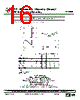
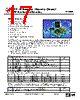
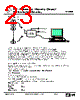
23 / 24 page 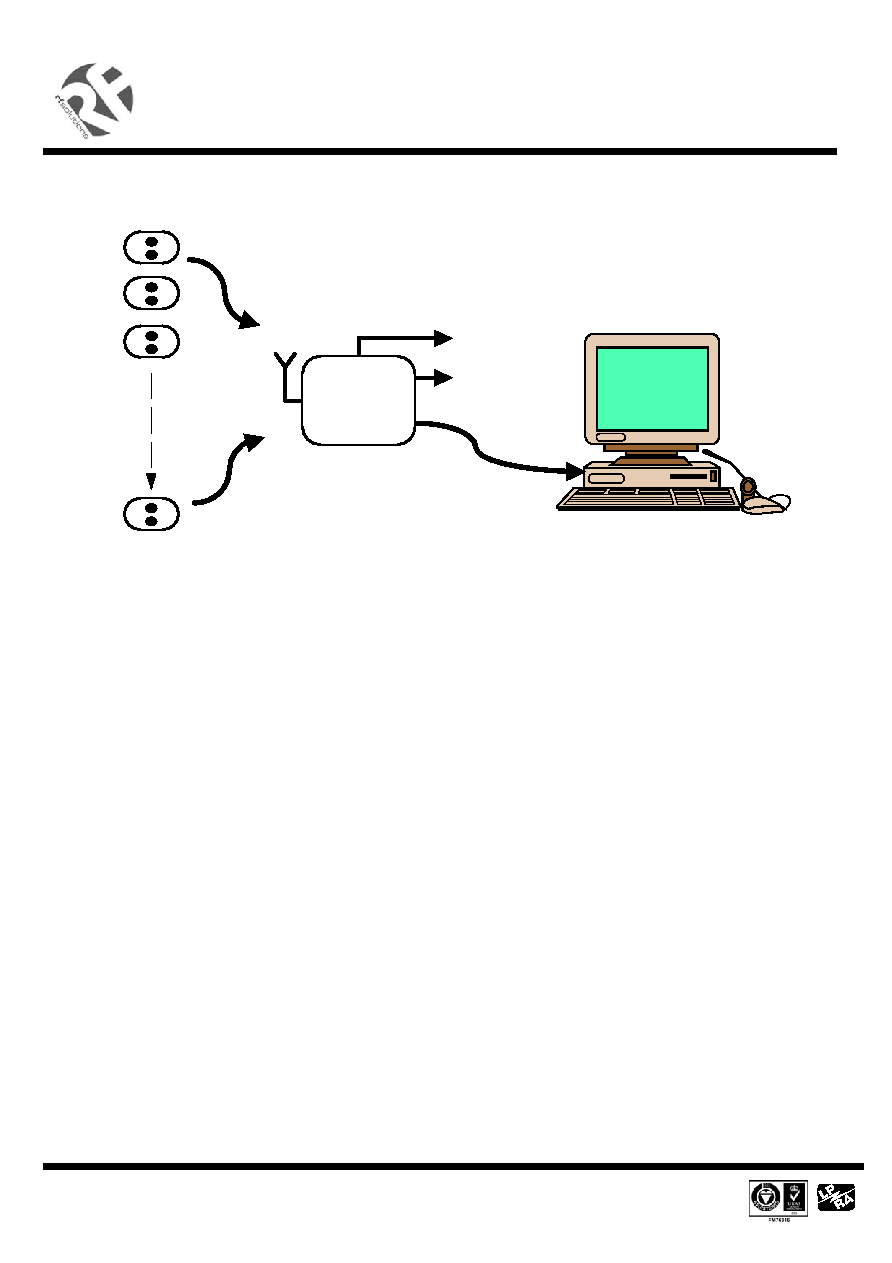 RF / IR Encoder / Decoder Chipset RF600E RF Evaluation Boards, RF600D Typical Application SA123 Rx Decoder T x Low Battery 4 Dig O/P's Upto 48 T ransmitters Configuring the outputs to operate with Transmitter Encoders The principle of operation is as previously described in the operation of the RF600D. Note that the on board RF600D will only operate the digital outputs of ‘pre-learnt’ transmitter encoders. Upto 48 unique transmitters may be learnt. The Serial output will be valid whenever a transmitter encoder is operated within range of the RF / IR receiver as long as the transmitter encoder has a matching Manufacturers Key. (For a unique manufacturers key please contact our sales Department) No ‘pre-learning’ of the transmitter encoder is required for the serial data output. Therefore if a serial output is required from a pre-learnt transmitter encoder the digital and serial outputs must be logically gated together (using a simple logic gate). Using HyperTerminal to view the Serial Data The data can be viewed using any PC running Windows HyperTerminal using the following configuration. (Assume Com 1 is the port being used:) To start HyperTerminal go to :- Start > Programs > Accessories > Communications > HyperTerminal. Select Hypertrm.exe Enter a name and select an Icon. The ‘Connect To’ dialog box should now be open. Select “Direct to COM1” in the ‘Connect Using’ Field and select OK. In the COM1 Properties Dialog Box set the fields with the following parameters: Bits per Second: 9600 Data Bits: 8 Parity: None Stop bits: 1 Flow control: None DS600-9 Sept ‘04 ©2004 Reg. No. 227 4001, ENGLAND Page 23 |
|
|
Link URL |
| Does ALLDATASHEET help your business so far? [ DONATE ] |
About Alldatasheet | Advertisement | Contact us | Privacy Policy | Link to Datasheet | Link Exchange | Manufacturer List All Rights Reserved©Alldatasheet.com |
| Russian : Alldatasheetru.com | Korean : Alldatasheet.co.kr | Spanish : Alldatasheet.es | French : Alldatasheet.fr | Italian : Alldatasheetit.com Portuguese : Alldatasheetpt.com | Polish : Alldatasheet.pl | Vietnamese : Alldatasheet.vn Indian : Alldatasheet.in | Mexican : Alldatasheet.com.mx | British : Alldatasheet.co.uk | New Zealand : Alldatasheet.co.nz |
|
Family Site : ic2ic.com |
icmetro.com |
 New Zealand ▼
 English
 Chinese
 German
 Japanese
 Russian
 Korean
 Spanish
 French
 Italian
 Portuguese
 Polish
 Vietnamese
 Indian
 Mexican
 British
 New Zealand